Help for the Smart Home Controller II
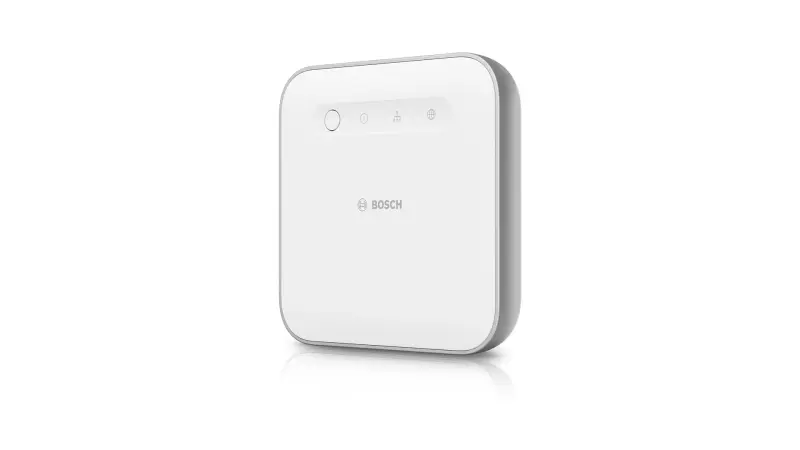
Questions about the Smart Home Controller II? We are happy to help you!
On this page you will find all information about the Smart Home Controller II.
Smart Home controller II - Installation
Smart Home controller II - Installation
Transferring data to the Bosch Smart Home controller II
You can transfer most of the data from your existing Bosch Smart Home controller to the new Bosch Smart Home controller II. Follow these steps:
1. Open the Smart Home App:
- In the Smart Home App, go to “More”.
- Select “System”.
- Tap “Data”.
- Select “Transfer system data”.
2. Step-by-step instructions:
- The Smart Home App guides you through the entire process.
- Your paired Bosch Smart Home products as well as automations and scenarios are migrated to the new controller II.
It is that easy to transfer your data to the new Bosch Smart Home controller II!
The Bosch Smart Home controller II is the control centre of every Bosch Smart Home system and connects your smart devices.
For communication, the Smart Home controller II uses the Zigbee radio protocol.
You can find information on the compatibility of your Bosch Smart Home products with the second-generation Smart Home controller on our website.
### Problem: The Bosch Smart Home App for the iOS operating system cannot find the Smart Home Controller on the local network
If the Bosch Smart Home App on your iPhone or iPad cannot find the Smart Home Controller, please proceed as follows:
- Leave the screen open in the Bosch Smart Home App that says the Bosch Smart Home Controller cannot be found. Then please press the function button on the front of the Controller until the LAN and Cloud LEDs flash. The Bosch Smart Home App should now jump to the next screen, prompting you to enter the system password.
- Alternatively, you can manually enter the IP address of your Bosch Smart Home Controller.
If this does not lead to the desired result, this is usually due to missing permissions for the Bosch Smart Home App as well as privacy settings on the iPhone/iPad being used.
First, make sure that your mobile device and the Smart Home Controller are on the same network. Additionally, disable mobile data.
We recommend that you then check the following settings and adjust them if necessary if the Smart Home App for iOS displays an error during the initial setup of the Controller:
#### Allow access to devices on the local network
When installing the Smart Home App, the app requests access to the local network. You must agree to this permission. You can adjust the permission later. To do this, proceed as follows:
- Open the Settings on the iPhone/iPad
- Navigate to "Privacy & Security" and "Local Network"
- Select the Bosch Smart Home App from the list of available apps
- Enable access to the local network
For more information on privacy settings, please visit Apple's support page at: If an app wants to connect to devices on your local network - Apple Support (US)
Open the Bosch Smart Home App again and start searching for the Bosch Smart Home Controller.
If the Controller is repeatedly not found, make adjustments to the following privacy settings:
#### Adjusting the "Private Wi-Fi Address" function on your iOS device
Open the Settings on the iOS device being used and navigate to "Wi-Fi".
Click on the info icon next to the connected network.
Change the "Private Wi-Fi Address" for the network your iOS device is currently connecting to to "Static" or "Off".
For more information on this privacy setting, please visit Apple's support page at: Use private Wi-Fi addresses on Apple devices - Apple Support (US)
#### Disabling the "Secure Internet Browsing with iCloud Private Relay" Feature
If you have subscribed to the Apple service "iCloud+", navigate to the following setting:
Open the Settings on your iOS device and tap on your Apple ID.
Navigate to "iCloud" and "Private Relay"
Disable the "Private Relay" feature
For more information about this privacy setting, please visit Apple's support page at: Secure Internet Browsing with iCloud Private Relay on iPhone - Apple Support (EN)
### Connecting the Bosch Smart Home controller II to the network
The Bosch Smart Home controller II is connected to your router via a LAN cable.
A direct connection via WLAN is not possible. Here's how to set up the connection step by step:
#### Setup steps
1. **Connect LAN cable**: Connect the LAN cable to the Bosch Smart Home controller II and your router.
2. **Check cable**: Make sure the LAN cable is correctly inserted and clicks into place.
3. **Check router settings**: The router must be able to assign anIPv4 address to the Smart Home controller II.IPv6 addresses are not supported by the controller.
4. **Internet connection**: For initial setup, the Bosch Smart Home controller II requires an active internet connection to download important software updates.
If you experience any problems during setup, our
is happy to help.Smart Home controller II - Operation
Smart Home controller II - Operation
No results found
Smart Home controller II - Transfer system data
Smart Home controller II - Transfer system data
Duplicate device list in Google Home
If you notice that your devices are listed twice in Google Home, this is probably because the devices that were connected via the old controller are still displayed. These devices are usually marked as “unreachable”. To remove the duplicate device entries, you must delete the connection between Bosch Smart Home and the Google Home app. These are the steps you should follow:
1. Open the Google Home app.
2. Select “Settings”.
3. Click on “Add device”.
4. Select “Works with Google”.
5. Under “Linked services”, select the “Bosch Smart Home Action”.
6. Select “unlink account”.
After you have carried out these steps, the duplicate device entries should disappear. If you have any further questions or concerns, we will be happy to help!
Duplicate device list in Apple HomeKit
If you notice that your devices are listed twice in Apple HomeKit, this is likely because the devices that were connected via the old controller are still being displayed. These devices are typically marked as "unreachable" and grayed out. Once you remove the old Smart Home Controller from Apple HomeKit, the duplicate device entries should disappear. If you have any further questions or concerns, we are happy to assist you!
Restoring the connection to the second generation camera
After a data transfer, it may happen that the second generation cameras are no longer connected to the system. Here are the steps you should follow to restore the connection:
1. After the data transfer, check whether your camera still works with the new Smart Home controller II.
2. If the camera does not work, open the device management under "More".
3. Delete the cameras that do not work after the data transfer.
4. Then add the cameras again.
With these steps, the connection of your second generation camera should be restored. If you have any further questions, we are happy to help!
Data transfer and Protect+ with the Bosch Smart Home Controller
If you have insured your Bosch Smart Home Controller with Protect+ and are performing a data transfer, there are some important points to consider:
After the data transfer, you must adjust your Protect+ contract. Here are the steps you need to follow:
1. Open the Smart Home app on your smartphone.
2. Go to "More" and select "Protect+".
3. Click on "Adjust contract".
This adjustment ensures that your Protect+ contract remains valid and your Smart Home Controller stays properly insured. If you have any further questions or need assistance, we are happy to help
Restoring the connection to Apple HomeKit after data transfer
After a data transfer, it may be necessary to reconfigure the connection to Apple HomeKit. Here are the steps you should follow:
Before the data transfer
1. Document all room assignments, automations, and scenes you have created in Apple HomeKit. These will need to be recreated after the data transfer.
During the data transfer
1. Access to Apple HomeKit will be disabled in the Bosch Smart Home App.
2. The devices in Apple HomeKit will not be automatically deleted. You must manually remove them in the Apple Home App:
- Open the Apple Home App.
- Navigate to "Home Settings".
- Under "Hubs & Bridges" you will find the Smart Home Controller under "Bridges".
- Remove the Smart Home Controller by selecting "Remove Bridge from Home". Warning: All connected devices will be removed from the Apple Home App, including automations and scenes!
After the data transfer
1. To reactivate Apple HomeKit on the Smart Home Controller, go to "Partners" in the Bosch Smart Home App.
2. Activate Apple HomeKit and follow the steps described in the process.
With these steps, the connection to Apple HomeKit should be restored. If you have any further questions, we are happy to help!
### Prerequisites for data transfer
Before you begin the data transfer, please ensure that the following prerequisites are met:
#### Hardware requirements
- You own a Bosch Smart Home controller II.
- Your router has an additional free network port for the new controller II.
- You have a free power outlet.
- The Smart Home controller II has not been used before or has been reset to factory settings.
- Your current Smart Home controller is running the latest software version. Check the software version here: [Bosch Smart Home Release Notes](https://www.bosch-smarthome.com/xc/en/release-notes/)
#### Device requirements
- To use certain first-generation devices after transferring the system data, you must connect a radio stick (868 MHz) to your Smart Home controller II. The data transfer itself works even without the radio stick.
- The following first-generation devices require a radio stick (868 MHz):
- Room thermostat
- Room thermostat underfloor heating
- Radiator thermostat
- Smart plug
- Smoke detector
- Universal switch
- Universal switch Flex
- Light control
- Shutter control
- Door/window contact
- All smart devices (radiator thermostats, smart plugs, shutter controls, etc.) are online.
#### Network requirements
- The smartphone or tablet you use to start the data transfer is connected to the current Smart Home controller.
- Both Smart Home controllers and your smartphone or tablet are on the same network.
- Disable VPN service on mobile device: For data migration, the Smart Home app must be able to find the controller on the same network. Temporarily turn off the VPN service.
#### Security requirements
- You know the system password.
If all these prerequisites are met, you can begin the data transfer. If you have any further questions or concerns, please feel free to contact our
Instructions for data transfer for the Bosch Energy Manager
When transferring data for the Bosch Energy Manager, there are several points you should consider. Here are the most important steps:
Restoring the connection between Energy Manager App and Smart Home Controller
After data migration, the connection between the Energy Manager App and the Smart Home Controller may be interrupted. To restore it:
1. Delete the Energy Manager App from your devices.
2. Download the app again from the Apple Store or Google Play Store.
3. Alternatively, you can reset the storage of the Energy Manager app.
4. When restarting the app, you will be prompted to connect a Smart Home Controller.
Don't worry, your historical data and the connections to the paired devices will be preserved and transferred.
Restoring the connection to specific devices
For technical reasons, some devices will be displayed as "offline" after migration and must be reconnected. Here are the steps for the affected devices:
Heat pumps with K30 RF or MX300 WLAN Gateway
1. Select the "Components" entry in the menu.
2. Press "..." on the "Heat pump" entry and select "delete".
3. The app will return to the commissioning workflow and you can reconnect the heat pump.
Bosch Power Meter
1. Put the Bosch Power Meter into pairing mode.
2. Press the reset button on the Bosch Power Meter with a pointed object once long (between 0.5 - 2 s) and then within 1 s once briefly (maximum 0.5 s)
With these steps, the data transfer for your Bosch Energy Manager should proceed smoothly. If you have any further questions, we are happy to assist you!
## Identifying and Removing the Old Smart Home Controller
### How to identify your old controller:
1. **Compare the MAC address**: Look at the back of your controller. There you will find the MAC address.
2. **Check the listing**: Compare the last digits of the MAC address with the controller listing.
### How to remove the old controller:
1. **Identify the old controller**: Use the steps mentioned above.
2. **Remove the old controller**: Once you have identified the old controller, you can safely remove it.
If you have any further questions, we are happy to help you!
Solution for duplicate entries in the mobile device manager
If you notice that previously connected mobile devices appear twice in the mobile device manager, there are two possible solutions:
1. Updating the IP address
In some cases, you can resolve the issue by simply entering the new IP address of the Smart Home Controller on these devices. This will reconnect the device and your favorites will be preserved.
2. Reinstalling the Bosch Smart Home App
If updating the IP address does not work and no connection to the new Smart Home Controller can be established, you will need to delete the Bosch Smart Home App from these devices and download it again from the Play Store. Before doing this, you should delete the "old" mobile devices from the mobile device manager.
By following these steps, you should be able to resolve the issue with duplicate entries in the mobile device manager. If you have any further questions or problems, we are happy to assist you!
Transfer of system data: What you should consider
The transfer of system data from your Smart Home controller to the Smart Home controller II is an important process. Here are some points you should consider:
Before data transfer
An update of the Smart Home controller II will be performed. The duration of the update depends on your internet speed and takes an average of 5-10 minutes. While the update is being performed, you can leave the app running in the background.
During data transfer
The data transfer takes an average of 5-10 minutes. You need to take action by following the steps in the app and on the Smart Home controller II. The data is transferred via the local network. You can cancel the data transfer up to a certain point by tapping the "X" at the top left of the screen.
Please note that the connection between the Smart Home controller and your smart devices will be temporarily interrupted during data transfer. All devices (e.g. plug-in switches, room thermostats) and services (e.g. alarm system, presence simulation) will not function during data transfer.
After data transfer
You have the option to restore the connection to partners (Amazon Alexa, Google Assistant, etc.).
If problems occur during data transfer, you can use the old Smart Home controller to control your system after you have canceled the data transfer.
If you have any further questions or concerns, we are happy to help!
Restoring the connection to MBUX Mercedes after data transfer
After a data transfer, it may be necessary to reconfigure the connection to MBUX Mercedes. Here are the steps you should follow:
During the data transfer
1. The Bosch Smart Home Cloud will be deactivated in the Bosch Smart Home App.
2. Switch to the Mercedes Me App and deactivate the Bosch Account under "MBUX Voice Assistant".
After the data transfer
1. To restore the connection to MBUX Mercedes, open the "Bosch Smart Home Cloud" under "Partners" in the Bosch Smart Home App.
2. Subsequently, activate the Bosch Account in the Mercedes Me App under "MBUX Voice Assistant".
With these steps, the connection to MBUX Mercedes should be restored. If you have any further questions, we are happy to assist you!
Restoring the connection to Amazon Alexa after data transfer
After a data transfer, it may be necessary to reconfigure the connection to Amazon Alexa. Here are the steps you should follow:
Before the data transfer
1. Document all room assignments and scenarios you have created in Amazon Alexa. These will need to be recreated after the data transfer.
During the data transfer
1. The Bosch Smart Home Cloud will be deactivated in the Bosch Smart Home App.
2. The devices in Amazon Alexa will be deleted. However, you must manually delete the skill itself:
- Open the Amazon Alexa App.
- Select "more" in the tab bar.
- Select "Skills & Games".
- Switch to "Your Skills".
- Select the "Bosch Smart Home Skill" and disable it.
After the data transfer
1. To restore the connection to Amazon Alexa, please switch to the Bosch Smart Home App and activate the "Bosch Smart Home Cloud" under "Partners".
2. Reactivate the Amazon Alexa Skill via the "Amazon Alexa" menu item.
With these steps, the connection to Amazon Alexa should be restored. If you have any further questions, we are happy to help!
Inserting the radio stick after data transfer
Yes, you can also insert the radio stick after a data transfer. If you are using devices that operate on the 868 MHz radio frequency but do not have a corresponding radio stick, you can still migrate. The data from these devices will be transferred.
Please note, however, that you will only be able to operate the affected devices via the Smart Home app once you have connected a radio stick. Therefore, we recommend that you purchase and connect a radio stick before performing the migration to ensure that you can control all your devices without any problems.
If you have any further questions or need assistance, we are happy to help.
### Migration without Radio stick (868 MHz) with the Bosch Smart Home Controller II
#### Important Information
- **Devices with 868 MHz**: If your devices operate on the 868 MHz radio frequency, you need a corresponding radio stick to control them via the Smart Home app.
- **Migration without radio stick**: Without the radio stick, migration is not recommended, as you will not be able to operate the affected devices.
#### What happens during a migration without a radio stick?
- **Limited control**: You will only be able to control the devices via the Smart Home app again once you have connected a radio stick.
#### Our Recommendation
- **Purchase a radio stick**: Buy a radio stick before migration to ensure that you can control all your devices without any problems.
#### Support
- **Questions and Help**: If you have any further questions or need assistance, we are happy to help.
Data migration: What will be transferred and what needs to be set up again?
When migrating from your old Smart Home Controller to the Smart Home controller II, most of your data and settings will be transferred. However, there are some exceptions you should be aware of.
What will be transferred?
1. Smart Home Controller settings (e.g. rooms and remote access)
2. Paired Bosch Smart Home devices and their settings
3. Integration of Bosch Smart Home cameras 1st Gen
4. Philips Hue devices and their settings
5. Ledvance devices and their settings
6. Automations and scenarios
7. Service configurations
8. Integration of Home Connect home appliances
9. Integration of Yale Smart Lock
10. Created favorites on the smartphone you are using for migration
Please note that Bosch Power Meter and heat pump must be reconnected.
What will not be transferred?
For technical reasons, the following data will not be transferred and must be set up again:
1. Connections between other smartphones or tablets and the Smart Home Controller. These devices must be reconnected.
2. Created favorites on these smartphones or tablets
3. Created widgets
4. Integration of Bosch Smart Home cameras 2nd Gen
5. Connections between Bosch/Buderus Energy Manager apps and the Smart Home Controller
6. Connections to partners via the Smart Home Cloud (Amazon Alexa, Google Assistant, MBUX Mercedes). For these partners, routines, scenarios and rooms must be created again.
7. Connection to Apple HomeKit. Here, created routines and room assignments must be set up again.
If you have insured your first generation Smart Home Controller with Protect+, you must change your contract via "More
– Protect+" and click on "Adjust contract".
If you have any further questions or concerns, we are happy to help!
Restoring the connection to Google Home after data transfer
After a data transfer, it may be necessary to reconfigure the connection to Google Home. Here are the steps you should follow:
Before the data transfer
1. Document all room assignments, routines, and scenarios you have created in Google Home. These will need to be recreated after the data transfer.
During the data transfer
1. The Bosch Smart Home Cloud will be deactivated in the Bosch Smart Home App.
2. The devices in Google Home will not be automatically deleted. You must remove them manually in the Google Home app:
- Open the Google Home app.
- Select "Settings".
- Click on "Add devices".
- Select "Works with Google".
- Under "Linked services", select the "Bosch Smart Home Action".
- Select "unlink account".
- The devices will be removed from the Google Home app and the routines being used.
After the data transfer
1. To restore the connection to Google Home, open the "Bosch Smart Home Cloud" under "Partners" in the Bosch Smart Home App.
2. Reconnect the Bosch Smart Home Action with Google Home:
- Open the Google Home app.
- Select "Settings".
- Click on "Add devices".
- Select the "Bosch Smart Home Action" and connect the applications.
With these steps, the connection to Google Home should be restored. If you have any further questions, we are happy to assist you!
# Troubleshooting: Devices are displayed but cannot be controlled
If your devices are displayed after data transfer but cannot be controlled, this could be due to two possible causes:
## Possible causes
### 1. Restart of the Smart Home controller II during data transfer
After an update or restart of the Smart Home controller II, it may happen that the devices temporarily do not report a status to the controller. However, the devices remain fully functional. To display the correct status in the app immediately, operate the device manually directly on the device itself.
### 2. Old controller is still connected to the router
If your old Smart Home controller is still connected to your home network, the new Smart Home controller II cannot communicate with the end devices. Make sure you have disconnected your old controller from the router.
## Solution steps
- Operate the device manually to update the status in the app.
- Disconnect the old Smart Home controller from the router.
By following these steps, you should be able to control your devices normally again. If you have any further questions or problems, we are happy to help!
Data migration: What will be transferred and what needs to be set up again?
When migrating from your old Smart Home Controller to the Smart Home controller II, most of your data and settings will be transferred. However, there are some exceptions you should be aware of.
What will be transferred?
1. Smart Home Controller settings (e.g. rooms and remote access)
2. Paired Bosch Smart Home devices and their settings
3. Integration of Bosch Smart Home cameras 1st Gen
4. Philips Hue devices and their settings
5. Ledvance devices and their settings
6. Automations and scenarios
7. Service configurations
8. Integration of Home Connect home appliances
9. Integration of Yale Smart Lock
10. Favorites created on the smartphone you are using for migration
Please note that Bosch Power Meter and heat pump must be reconnected.
What will not be transferred?
For technical reasons, the following data will not be transferred and must be set up again:
1. Connections between other smartphones or tablets and the Smart Home Controller. These devices must be reconnected.
2. Favorites created on these smartphones or tablets
3. Created widgets
4. Integration of Bosch Smart Home cameras 2nd Gen
5. Connections between Bosch/Buderus Energy Manager apps and the Smart Home Controller
6. Connections to partners via the Smart Home Cloud (Amazon Alexa, Google Assistant, MBUX Mercedes). For these partners, routines, scenarios and rooms must be created again.
7. Connection to Apple HomeKit. Here, created routines and room assignments must be set up again.
If you have insured your first generation Smart Home Controller with Protect+, you must change your contract via "More
– Protect+" and click on "Adjust contract".
If you have any further questions or concerns, we are happy to help!
Smart Home controller II - Back up system data
Smart Home controller II - Back up system data
Validity of a data backup
Regular updating
- Recommendation: Update your data backup every year.
- Reason: The Zigbee network key is updated regularly.
Why is this important?
- Security standards: The update of the network key is based on the security standards of Zigbee communication.
- Communication problems: If the network key is changed between the creation of the data backup and the data restoration, the controller can no longer communicate with the Zigbee devices.
Summary
- Keep your data backup up to date to avoid communication problems.
- An annual update is necessary to comply with the security standards.
Automatic data backup before validity expires
The data backup of your Smart Home system is not automatically recreated before its validity expires.
Important notes:
- Manual backup: Please remember to perform manual backups regularly.
- Reminder: Set yourself a reminder to renew the data backup in good time.
Reading out the data backup on the Smart Home controller I and Smart Home controller II
Is it possible to read out the data backup?
No, it is not possible to read out the data backup.
Yes, you can perform several data backups in succession.
Important note:
Do not start the second backup immediately after the first. Wait at least 15 minutes before starting the next backup.
Storage location of the backup file
Options for the backup:
- Mobile device: You can save the backup file directly on your smartphone or tablet.
- Private cloud: Alternatively, you can store the file in your private cloud.
Notes:
- Make sure that your mobile device or cloud has sufficient storage space.
- Regularly check the backup files to make sure they are up to date.
These options keep your backup file safe and easily accessible.
Requirements for a successful data backup
For the backup to work smoothly, the following conditions must be met:
- Home network: The Smart Home controller and your smartphone or tablet must be connected to the same home network.
- System password: You must know the system password.
- Online devices: All smart devices that you want to back up (e.g. radiator thermostats, smart plugs, shutter controls etc.) must be online.
Important notes
- Zigbee devices: Technically, Zigbee devices can only be restored on the Smart Home controller II.
- Proprietary 868 MHz radio protocol: First generation devices that support this radio protocol can also be fully restored on the first generation Smart Home controller.
Important information on data backup and restoration
- Duration of the backup: Approx. 1–5 minutes.
- Availability: The Smart Home controller is not available during the backup.
- Cancel: You can cancel the backup by tapping the “X” symbol at the top left of the screen.
- Error messages: If errors occur during the backup, you will be notified in the Smart Home App.
- Password: Write down the backup password in your private password manager. This password is required for the data restoration. The Bosch Smart Home team cannot help you if the password is lost.
- Storage location: You can save the backup file on your mobile device or in another storage location.
Notes on restoration
- Problems with the restoration: Despite compliance with all requirements, problems may occur when saving or restoring the data. In such cases, devices may need to be paired again or connections may need to be re-established.
- No guarantee: There is no guarantee that restoring from backed-up system data will always work.
You can find the video instructions on data backup on our YouTube channel.
Please observe these points to ensure smooth data backup and restoration of your Smart Home system.
Difference between the backup password and the system password
The backup password and the system password are not identical.
- Backup password: This password is used to protect your backup. It can be the same as your system password if you specified this when creating the backup.
- System password: This password is used to access your Smart Home system.
Important notes
- No recovery: The Bosch Smart Home team cannot help you if you lose your backup password.
- No reset: It is also not possible to have the system password reset by Bosch Smart Home customer support.
Please keep both passwords in a safe place to ensure access to your data and your Bosch Smart Home system.
Smart Home controller II - Restore system data
Smart Home controller II - Restore system data
Data restoration on the Bosch Smart Home controller
Question: Does the Bosch Smart Home controller need to be at factory settings to perform a data restoration?
Answer: No, the Bosch Smart Home controller does not need to be at factory settings. The controller on which you want to restore the backup must already be set up.
Important points:
- The controller must be set up.
- Factory settings are not required.
This ensures that your data is restored to the Smart Home controller without any problems.
Connecting mobile devices to a new Smart Home controller
If you have set up a new Smart Home controller and your mobile devices cannot find it, follow these steps:
1. Delete the Bosch Smart Home App:
Remove the Bosch Smart Home App from all mobile devices that were previously connected to the old controller.
2. Reinstall the Smart Home App:
Download the Bosch Smart Home App again from the respective app store (Google Play Store or Apple App Store).
3. Reconnect the devices:
Open the newly installed app and follow the instructions to connect your mobile devices to the new Smart Home controller.
Data restoration on the same controller
If you restore the data on the same Bosch Smart Home controller, the mobile devices remain connected. Your favourites are also retained in this case.
Summary
- New Smart Home controller: Delete the Smart Home App, reinstall it and reconnect the mobile devices.
- Same Smart Home controller: Mobile devices remain connected, favourites are retained.
These steps will help you to connect your mobile devices to your new Smart Home controller quickly and easily.
Important information on the technical limitations
Data restoration: When restoring on the same Bosch Smart Home controller, it may only be necessary to re-establish the connection due to an expired token.
Automations and scenarios: For technical reasons, the Yale Linus® door locks cannot be backed up. They must therefore be added to your automations and scenarios again after restoration.
How to reconnect your Yale Linus® Smart Lock after a data restoration
1. Open device management:
- In the Smart Home App, go to “More”.
- Select “Device management”.
2. Delete door locks:
- Delete the door locks that no longer work after the data restoration.
3. Renew the connection to the partner:
- Go to “More” again.
- Select “Partners”.
- Tap “Smart locks” and renew the connection to the partner Yale.
4. Add the Smart Lock:
- Add your Yale Linus® Smart Lock again.
These steps will help you to reconnect your Yale Linus® Smart Lock to your system quickly and easily.
How to reconnect your Bosch Smart Home camera after a data restoration
If you want to reconnect your Bosch Smart Home camera after a data restoration, follow these steps:
Important notes
Data restoration: When restoring on the same Bosch Smart Home controller, it may only be necessary to renew the connection due to an expired token.
Technical limitations: Bosch Smart Home cameras cannot be backed up. They therefore disappear from automations and scenarios.
Steps for reconnecting
1. Open device management:
- In the Smart Home App, go to “More”.
- Open the device management.
2. Delete cameras that are not working:
- Delete the Smart Home cameras that no longer work after the data restoration.
3. Renew the connection:
- Go to “More” again.
- Select “Partners”.
- Select “Bosch cameras”.
4. Add the cameras again:
- Add the Smart Home cameras to your system again.
These steps will help you to reconnect your Bosch Smart Home camera quickly and easily after a data restoration.
Reconnecting your Home Connect devices
If you want to reconnect your Home Connect devices to your Bosch Smart Home system, please follow these steps:
1. Open device management:
- In the Smart Home App, go to “More”.
- Select “Device management”.
2. Delete devices that are not working:
- Delete the devices that no longer work after the data restoration.
3. Renew the connection to Home Connect:
- Go to “More” again.
- Select “Partners”.
- Tap “Home Connect” and renew the connection.
4. Add home appliances:
- Add your Home Connect home appliances again.
Note
Please note that, for technical reasons, Home Connect devices cannot be backed up. They therefore disappear from the automations and scenarios and must be added again.
Data restoration for the Bosch energy manager
General notes:
- When restoring on the same Bosch Smart Home controller, it may only be necessary to re-establish the connection due to an expired token.
- The connection between the Bosch energy manager app and the Smart Home controller is no longer available after data restoration.
Restoring the connection:
1. Reinstall the app:
- Delete the energy manager app from your mobile devices.
- Download the app again from the Apple App Store or Google Play Store.
2. Reset the app storage:
- Alternatively, you can reset the storage of the energy manager app.
- When you restart the app, you will be prompted to connect a Smart Home controller.
Historical data:
- Your historical data is retained.
- All data and connections to the paired devices are restored.
Devices that must be connected again
For technical reasons, the following devices must be connected again after data restoration:
1. Heat pumps with K30 RF or MX300 WLAN gateway:
- Open the Bosch energy manager app.
- Select the “Components” entry in the menu.
- For the “Heat pump” entry, press “...” and select “Delete”.
- The app returns to the commissioning workflow and you can connect the heat pump again.
2. Bosch Power Meter:
- Put the Bosch Power Meter into pairing mode.
- To do this, press the reset button on the Bosch Power Meter with a pointed object:
- Once long (0.5 to 2 seconds).
- Then, within 1 second, once briefly (max. 0.5 seconds).
These steps will help you to restore the connection and functionality of your Bosch energy manager after a data restoration.
Data restoration for Protect+ with Bosch Smart Home controllers
If you have insured your Bosch Smart Home controller with Protect+ and perform a data restoration on a new controller, please note the following steps:
1. Adjust contract:
- Open the Bosch Smart Home App.
- Go to “More”.
- Select “Protect+”.
- Tap “Adjust contract”.
2. Important notes:
- Make sure that all your Smart Home devices are correctly connected to the new Smart Home controller.
- Check whether all settings and automations are working as required.
These steps will help you to update your Protect+ contract correctly after a data restoration and ensure that your Smart Home system continues to run smoothly.
Data restoration for MBUX Mercedes
Important notes
Same controller: When restoring on the same controller, it may only be necessary to re-establish the connection due to an expired token.
Backup: For technical reasons, the connection to MBUX Mercedes cannot be backed up.
Steps for data restoration
1. Deactivation of the Bosch Smart Home Cloud:
- During data restoration, the Bosch Smart Home Cloud is deactivated in the Bosch Smart Home App.
2. Deactivation of the Bosch account in the Mercedes me app:
- Open the Mercedes me app.
- Go to “MBUX Voice Assistant”.
- Deactivate the Bosch account.
3. Restoring the connection after data restoration:
- Open the Bosch Smart Home App.
- Go to “Partners”.
- Activate the “Bosch Smart Home Cloud”.
- Open the Mercedes me app.
- Go to “MBUX Voice Assistant”.
- Activate the Bosch account.
Summary
- Before restoration: Deactivate the Bosch account in the Mercedes me app.
- After restoration: Activate the Bosch Smart Home Cloud in the Bosch Smart Home App and the Bosch account in the Mercedes me app.
These steps will help you to restore the connection to MBUX Mercedes after a data restoration.
Duplicate Smart Home devices in Google Home
If your Smart Home devices are listed twice in Google Home, you can solve the problem as follows:
Problem:
Devices that were connected via the old controller are now marked as “unreachable”.
Solution:
1. Disconnect:
- Delete the connection between Bosch Smart Home and the Google Home app.
- Open the Google Home app.
- Go to the settings.
- Select “Devices” and then “Linked services”.
- Search for Bosch Smart Home and select “Disconnect” or “Remove account”.
2. Relink:
- Connect Bosch Smart Home to the Google Home app again.
- Open the Google Home app.
- Go to the settings.
- Select “Devices” and then “Add service”.
- Search for Bosch Smart Home and follow the instructions for linking.
Note:
- Make sure that you are using the new Smart Home controller.
- Check whether all Smart Home devices are correctly connected and reachable.
These steps should help to remove duplicate entries and ensure that all devices are working properly.
Connecting to Amazon Alexa after data restoration
When you restore your Bosch Smart Home controller, the connection to Amazon Alexa may have to be set up again. Here are the steps you should follow:
Before data restoration
Documentation: Note down the room assignments and scenarios that you have created in Amazon Alexa. This makes it easier to set them up again after restoration.
During data restoration
Deactivation of the cloud: During restoration, the Bosch Smart Home Cloud is deactivated in the Bosch Smart Home App.
Deletion of the devices: The devices in Amazon Alexa are deleted. You must deactivate the Bosch Smart Home Skill manually.
Deactivating the Bosch Smart Home Skill in Amazon Alexa
1. Open the Amazon Alexa app.
2. Select “More” in the tab bar.
3. Go to “Skills & Games”.
4. Switch to “Your Skills”.
5. Select the “Bosch Smart Home Skill” and deactivate it.
Restoring the connection after data restoration
1. Open the Bosch Smart Home App.
2. Go to “Partners” and activate the “Bosch Smart Home Cloud”.
3. Reactivate the Amazon Alexa Skill via the “Amazon Alexa” menu item.
These steps will help you to restore the connection to Amazon Alexa quickly and easily after a data restoration.
Restoring the connection to Google Home after data restoration
Before data restoration
Documentation: Note down all room assignments, routines and scenarios that you have created in Google Home. This makes it easier to restore them later.
During data restoration
Bosch Smart Home Cloud: During restoration, the Bosch Smart Home Cloud is deactivated in the Bosch Smart Home App. However, the devices in Google Home are retained.
After data restoration
Disconnecting from Google Home
1. Open the Google Home app: Launch the Google Home app.
2. Select settings: Go to the settings.
3. Add devices: Tap “Add devices”.
4. Works with Google: Select this option.
5. Bosch Smart Home Action: Under “Linked services”, select the “Bosch Smart Home Action”.
6. Unlink account: Select “unlink account”. The devices are removed from the Google Home app and from the routines used.
Restoring the connection to Google Home
1. Open the Bosch Smart Home App: In the Bosch Smart Home App, go to “Partners” and select the “Bosch Smart Home Cloud”.
2. Open the Google Home app: Launch the Google Home app.
3. Select settings: Go to the settings.
4. Add devices: Tap “Add devices”.
5. Bosch Smart Home Action: Select the “Bosch Smart Home Action” and connect the applications.
Important notes
Routines and room assignments: These must be created again after restoration, as a backup is not possible for technical reasons.
Renew token: The connection may have to be re-established due to an expired token.
These steps ensure that your Bosch Smart Home devices are seamlessly connected to Google Home again.
Duplicate Smart Home devices in Apple HomeKit
If your Bosch Smart Home devices are listed twice in Apple HomeKit, you can take the following steps:
Problem: duplicate devices
- Cause: This can happen if devices are connected via both the old and the new Smart Home controller.
Solution: remove old devices
1. Check the devices:
- Devices connected via the old Smart Home controller appear as “unreachable” and are greyed out.
2. Delete the old Smart Home controller:
- Open the Apple Home app.
- Navigate to “Home Hubs & Bridges”.
- Remove the old Bosch Smart Home controller.
3. Check the Bosch Smart Home devices again:
- After deleting the old controller, the duplicate entries should disappear.
- The remaining Smart Home devices should now be displayed correctly.
Tips
- Update your app: Make sure that your Apple Home app is up to date.
- Restart: Restart your Smart Home devices and the controller to make sure that all changes have been applied.
With these steps, your Smart Home devices should be displayed correctly in Apple HomeKit.
Restoring the connection to Apple HomeKit after data restoration
Before data restoration
Document all room assignments, automations and scenarios that you have created in Apple HomeKit. This makes it easier to create them again after restoration.
During data restoration
Access to Apple HomeKit is deactivated in the Bosch Smart Home App.
The devices in Apple HomeKit are retained but must be connected again.
After data restoration
1. Remove the Bosch Smart Home controller in the Apple Home app:
- Open the Apple Home app.
- Go to “Home Settings”.
- Navigate to “Home Hubs & Bridges”.
- Select the Bosch Smart Home controller under “Bridges”.
- Remove the controller via “Remove Bridge From Home”.
- Note: All connected devices, automations and scenes will be removed.
2. Activate Apple HomeKit in the Bosch Smart Home App:
- Open the Bosch Smart Home App.
- Go to “Partners”.
- Activate Apple HomeKit and follow the instructions.
Important notes
For technical reasons, the connection to Apple HomeKit cannot be restored directly.
Scenes and room assignments must be created again.
Problem: two Smart Home controllers in Apple HomeKit
If two Smart Home controllers are displayed in Apple HomeKit, proceed as follows:
Step 1: Identify the new controller
- Look at the last digits of the two controller entries in Apple HomeKit.
- Compare these digits with the MAC address on the back of your Smart Home controllers.
Step 2: Remove the old controller
- Once you have identified the new controller, remove the old controller from Apple HomeKit (“Home Hubs & Bridges”).
Now only your new Smart Home controller should be displayed in Apple HomeKit.
Important information on data restoration
After data restoration:
First 24 hours: Do not create a new backup within the first 24 hours after data restoration. This prevents the device settings from the previous backup from being overwritten.
Why is this important?
Device settings: If you create a new backup too early, important device settings could be lost or not restored correctly.
Follow this advice to restore your data and device settings safely.
Data restoration on your Smart Home controller
Possible difficulties
Saving and restoring: Even if all specifications are met, problems may occur when saving or restoring the data.
Re-pairing devices: In some cases, Smart Home devices have to be paired again despite a previous backup.
No guarantee
Restoration: We cannot guarantee that restoring from backed-up system data will always work.
We recommend making backups regularly and being prepared for possible manual intervention.
Why can some devices not be transferred during data restoration?
Affected devices:
- Bosch Smart Home cameras
- Bosch Home Connect devices
- Yale Linus® Smart Lock
Background:
Data restoration and data transfer take place at different times:
- Data transfer: It takes place within a short time window.
- Data restoration: The backup used can be several months old.
Problem:
Some Bosch Smart Home devices and connections use so-called “tokens”.
These tokens are only valid for a limited time.
If data restoration takes place after several months, these tokens may have expired.
Therefore, the connections to these devices cannot be restored.
Summary:
- Tokens: They are only valid for a limited time.
- Data restoration: The backup used may contain outdated tokens.
- Result: Connections to certain devices cannot be restored.
Data backup and data restoration in the Smart Home App
To find the menu items for data backup and data restoration, follow these steps:
1. Open the Smart Home App.
2. Go to the “More” menu item.
3. Select “System”.
4. In the “Data” section, you will find the “Data backup” and “Data restoration” menu items.
These steps apply to both the Smart Home controller I and the Smart Home controller II.
Difference between data transfer and data backup
Data transfer (migration)
- Purpose: Transferring data from a Smart Home controller to a new Smart Home controller II.
- Advantages: More data can be transferred, e.g. Home Connect devices.
- Recommendation: If your Smart Home controller is working, choose data transfer if you want to switch to a Smart Home controller II.
- Timing: Data transfer takes place within a short time window.
Data backup
- Purpose: Backing up and restoring data.
- Limitations: Backups can be several months old, which can lead to outdated information.
- Token connections: Connections to partners or devices with a “token” cannot be restored, as these tokens are only valid for a limited time.
Summary
- Data transfer: Ideal for switching to a new controller, as more up-to-date data is transferred.
- Data backup: May contain older data and is less comprehensive when it comes to restoring connections.
Problem: old software version on a new Bosch Smart Home controller
If your Bosch Smart Home controller reports that the software is too old to perform a data restoration, proceed as follows:
Solution steps:
1. Check the software version: Make sure that the controller software is at least at the version on which the backup file was created.
2. Update the software: Update the software of your Smart Home controller to the latest version. You can do this via the Bosch Smart Home App.
3. Restart data restoration: Once the software has been updated, start the data restoration again.
Important notes:
- This procedure applies to both the Smart Home controller I and the Smart Home controller II.
- An up-to-date software version is necessary to ensure that all functions and security updates are available.
Data restoration on Smart Home devices
Here you can find an overview of the Smart Home controllers on which data restoration is possible:
Smart Home controller I
- Same controller I: Yes, data restoration is possible.
- Different controller I: Zigbee devices are not restored.
- Controller I to controller II: Yes, restoration is possible. If controller I still works, we recommend using the “Data migration” option.
Smart Home controller II
- Same controller II: Yes, data restoration is possible.
- Different controller II: Yes, data restoration is possible.
- Controller II to controller I: Zigbee devices are not restored.
We hope this information helps you!
Requirements for data restoration on a Smart Home controller
For data restoration on your Smart Home controller to be successful, the following requirements must be met:
1. Home network: Make sure that you are in your home network.
2. Backup password: You must know the backup password.
3. Online devices: All smart devices that you want to restore (e.g. radiator thermostats, smart plugs, shutter controls) must be online.
Switching from Smart Home controller I to Smart Home controller II
Working controller: If you want to switch from a working first-generation Smart Home controller to a Smart Home controller II, we recommend the data transfer via “More” > “System” > “Data transfer”. More data can be transferred this way.
Defective controller: If your first-generation Smart Home controller is defective and you switch to a Smart Home controller II, you need the Bosch Smart Home Radio stick (868 MHz) to operate the first-generation devices.
First-generation devices
If you restore the data without plugging in the Radio stick, you can only operate the following devices via the Smart Home App again once the Radio stick is connected:
- Room thermostat (1st generation)
- Underfloor-heating room thermostat (1st generation)
- Radiator thermostat (1st generation)
- Smart plug (1st generation)
- Smoke alarm (1st generation)
- Universal switch (1st generation)
- Universal switch Flex (1st generation)
- Light control (1st generation)
- Shutter control (1st generation)
- Door/window contact (1st generation)
Make sure that all the requirements mentioned are met to ensure smooth data restoration.
Important information on data restoration
General information
- Duration: Data restoration takes about 10 minutes.
- Availability: The Bosch Smart Home controller is not available during the process.
- Errors: If an error occurs during restoration, you will be notified and the old configuration will be retained.
Requirements
- Password: You need the backup password that you set when creating the backup. Bosch Smart Home cannot help you if you lose the password.
Restoration process
- Restart: Once data restoration is complete, the software components of the Smart Home controller are restarted. The LEDs on the device do not flash during this restart.
- Device status: After restoration, the devices do not report a status for up to 24 hours. The configuration is only assigned to the devices once they have reported back to the Smart Home controller.
- Installation changes: Devices whose installation type has changed after the backup are deleted and must be paired again.
After restoration
- Check: Check the configuration or intended use of the devices on site and adjust them if necessary.
Important notes
- Problems: Even if all specifications and requirements are met, problems with saving or restoring the data may occur in individual cases.
- Re-pairing: In such cases, devices may have to be paired again or connections may have to be re-created.
- No guarantee: We cannot guarantee that restoring from backed-up system data will work.
You can find the video tutorial on data restoration on our YouTube channel.
Data restoration for Smart Home controllers
Restored data:
- Settings of the Smart Home controller (e.g. rooms)
- Paired Bosch Smart Home devices and their settings
- Connections to Philips Hue and Ledvance devices
- Automations, scenarios and states
- Measurement data of the Twinguard
- Data and configuration of the Bosch/Buderus energy manager
For technical reasons, the following data is not restored when switching to a new controller:
- Connections to mobile devices: smartphones and tablets must be connected again.
- Connections to devices with a local REST API
- Status of remote access
- Status of the paired devices: e.g. on/off, colour, brightness
- Individual device configurations: e.g. calibration and position of the Shutter control (1st generation), heating system settings, boost mode of the thermostats, power source of the Outdoor siren
- Favourites and created widgets
- Integration of the Bosch Smart Home cameras: the devices must be deleted and connected again.
- Energy manager app: the app must be connected to the Smart Home controller again. The heat pump and power meter must be paired again if the restoration takes place on a different controller.
- Integration of Home Connect home appliances and Yale smart locks
- Connections to partners via the Smart Home Cloud: Amazon Alexa, Google Assistant, MBUX Mercedes, Apple HomeKit, Matter
For these partners, routines, scenarios and rooms must be created again in the partner apps.
Important notes:
- Zigbee devices: The connections can only be restored on a Smart Home controller II.
- Deleted or reset devices: These cannot be restored.
- Changed installation type: Devices whose installation type has changed after the backup are not restored.
Installation types:
- Light/shutter control II: Installation as light control or shutter control (blinds or awning)
- Relay: Installation as an on/off switch or pulse control
Problems controlling your Smart Home devices after data restoration
If your Smart Home devices are displayed in the Smart Home App but cannot be controlled, this may be for the following reasons:
1. Restart of the Smart Home controller II during data restoration
- After an update or restart of the Bosch Smart Home controller, the devices do not report a status for a short time.
- The devices are still functional.
- To see the correct status in the Bosch Smart Home App, operate the device once directly on the device.
2. Switching to a new Smart Home controller
- The old Smart Home controller is still connected to the router.
- As long as the old controller is connected to the home network, the new Smart Home controller cannot communicate with the Smart Home devices.
- Disconnect the old controller from the router to solve the problem.
These steps should help you to control your Smart Home devices as usual again.
Get in touch with us.
A personal and professional service is important to us. If you have any questions or need professional personal support, please do not hesitate to contact us.