Smart Plug help
Questions about your Smart Plug?
Questions about your Smart Plug? You can find installation videos, instructions and answers to frequently asked questions here.
Videos
Helpful videos for your device. You can find more helpful videos on our YouTube channel under the following link: @BoschSmartHome
Smart Plug - Installation
Smart Plug - Installation
If the Smart plug cannot be integrated, reset the device to factory settings.
Press and hold the system button while plugging it into a socket until the LED flashes orange (at least 4 seconds).
Then release the button and press it again until the LED on the front lights up green.
The device will now restart and can be paired again via the Smart Home app.
Please also refer to our reset video in this article or on ourBosch Smart Home Youtube Channel.
If your smart plug is no longer reachable, please check whether it can still be controlled manually directly on the device.
If this is the case, it is possible that the distance between the controller and the component is too large, or that other products have a disruptive influence on the connection.
Make sure that the component is at least 1 meter away from the controller during the test.
If the device is still not reachable, please perform a reset on the device (reset to factory settings).
Please also refer to our reset video in this article or on ourBosch Smart Home Youtube Channel.
To install the Bosch Smart Home plug, all you need is the Bosch Smart Home app and the accessories included in the packaging. The Bosch Smart Home app guides you through the individual installation steps.
Please also refer to ourInstallation videoin this article or on ourBosch Smart Home Youtube Channel.
Smart Plug - Operations
Smart Plug - Operations
We do not recommend operation in a power strip.
It may take some time for the new value to be displayed in the app. If this does not change over time, briefly unplug the intermediate plug and plug it back in. The correct consumption will then be displayed.
The following restrictions must be observed when operating the Smart plug:
- Check the delivery contents for integrity. Only install parts that are in perfect condition. Only connect the Smart plug to an easily accessible mains socket with protective contacts.
- In case of danger, disconnect the device from the mains socket.
- Do not plug Smart plugs in series.
- Do not use Smart plugs in power strips or with extension cables.
- Do not connect end devices whose unsupervised switching on could cause fires or other damage (e.g. irons).
- Always disconnect the end device's plug from the Smart plug before making any changes to the end device (e.g. changing light bulbs).
- Devices with electronic power supplies (e.g. televisions or high-voltage LED lamps) do not represent ohmic loads. They can generate inrush currents of over 100A. Switching such loads leads to premature wear. As a result, the connected load may not be reliably switched off.
- Do not use the Smart plug for isolation. The load is not galvanically isolated from the mains.
The current operating and installation instructions apply.
The function was removed because you can implement it via an automation.
To do this, set up the following automation:
1. WHEN plug adapter is turned on
2. AND time period 8 PM-12 AM
3. THEN after 5 minutes turn plug adapter off.
The shutdown function can thus be configured in much more detail. Additionally, multiple automations with different shutdown conditions can be configured.
In the event of a power outage, your smart plugs are switched off by default as soon as the power outage has ended.
You can switch them back on either on the device or in the app.
If automations have been created by you with the smart plug as an actuator, they will control the smart plug normally again afterwards.
Smart Plug - General Information
Smart Plug - General Information
The Smart plug can increase the range between the Smart Home Controller and the following devices:
- Light Control (only DE/AUT)
- Shutter Control (only DE/AUT)
- Room Thermostats
- Room Thermostats Underfloor Heating (only DE/AUT)
- Radiator Thermostats
- Door/Window Contacts
- Smoke Detectors
- Smart plug
- Universal Switch (Flex)
For the range extension to work, the Smart plug should ideally be plugged in halfway between your Smart Home Controller and the device with reception problems.
It is possible to "connect in series" at least two Smart plugs to further increase the radio range. The "range extension" function must be activated on the corresponding Smart plugs. No further configuration is required.
In principle, this function should be activated on as few Smart plugs as possible in order to keep signal transit times short and not unnecessarily burden the frequency band.
Important: With each additional signal-processing component connected in between, the signal transit time increases and thus also the response time when controlling your end devices. Each active component generates additional data traffic in the frequency band.
To reset your Bosch Smart Home smart plug, please proceed as follows:
1. Press and hold the system button while plugging it into a socket until the LED flashes orange rapidly.
2. Then release it and press it again until the LED on the front lights up green.
3. The device will now restart.
Please also refer to our reset video in this article or on ourBosch Smart Home Youtube Channel.
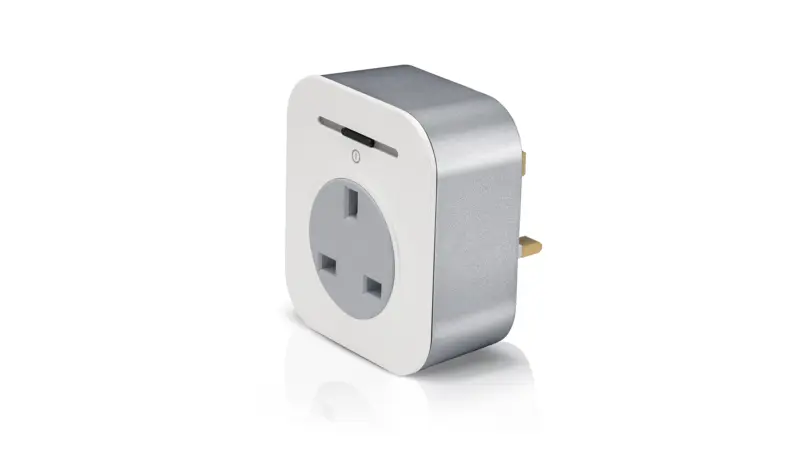
The versatile Smart plug from Bosch Smart Home gives your electrical devices networked intelligence in a flash.
With the wireless socket, you always have your current energy consumption in view.
Intelligent socket instead of simple power connection: With the Smart plug from Bosch Smart Home, you can add additional functions to almost any conventional electrical device.
Thanks to the programmable on and off function, the power supply of connected devices is controlled automatically. For example, your kitchen appliances will start the day a few minutes before you do: When you enter the kitchen, the coffee machine is already preheated and ready to use.
Use the wireless socket to adjust the start time to your needs and choose a different rhythm for the weekend – so you can sleep longer on Sunday and still enjoy your coffee right after waking up.
With the help of the Bosch Smart plug, you can intelligently control different electrical devices in your household.
The Smart plug has an on/off function directly on the device or via the app as well as an energy measurement function.
Further information can be found on the correspondingProduct page.
The smart plug has surge protection to a limited extent in accordance with the guidelines required for sale in Europe. A lightning strike causes a very high surge voltage for which the smart plug is not designed. However, as a rule, no technical device in the household is equipped to withstand a direct lightning strike.
No, the Bosch Smart Home Compact Smart Plug was designed exclusively for indoor use and must not be used outdoors.
Such use will void your warranty and guarantee claims.
Please note that the improper use of your Bosch Smart Home Compact Smart Plug carries an untested theoretical hazard potential, which can be caused by the effects of moisture, heat or cold, as well as other natural environmental factors.
Yes, the Bosch Smart Home App offers the option to control the Smart plug via timer.
Yes, the Bosch Smart Home App offers the option to control the Smart plug via timer.
No, the Bosch Smart Home Plug does not offer surge protection.
The Bosch Smart Home Smart plug can be controlled via Universal Switch and Light Control (scenario/automation).
The power consumption in stand-by mode is < 0.3 watts.
Yes, the Bosch Smart Home Smart plug can be voice-controlled via Amazon Alexa.
For the partner integration, the Bosch Smart Home Controller including Bosch Smart Home App (iOS, Android) is required.
No, the Bosch Smart Home Smart plug is not designed for connection to a twilight switch.
No, the Bosch Smart Home Smart plug does not have a USB port.
This page consists of three main areas:
A - Area for controlling the device
1. You can switch the device on or off.
2. You can enable a timer that switches the device off after a certain time.
- If the device is switched off by automations, the timer is cancelled
- The timer is not cancelled if there is a change to the schedule.
- The timer is not available in heating mode.
3. Set your device to manual operation (without a defined schedule) or automatic operation (according to a defined schedule).
B - Area with information about electricity/energy consumption
4. This area shows information about the current electricity consumption.
5. This area shows information about the total energy consumption since installation or since the last reset, along with the respective date and time.
C - Area for resetting and logging energy consumption
6. You can reset the energy consumption value. If the start date and time for the energy consumption measurement is not shown, we recommend resetting the value so that this information is available. Please note that your value will be set to zero.
7. You can add a log entry if you want to save the current values without resetting the entire energy consumption.
8. The energy log contains a list of all previously saved energy values (maximum of 20 values).
9. Current page display: Swiping takes you to the page for setting the time program.
Did you know?
Depending on the intended use of the smart plug, this is available in various services:
- Standard: Use in the presence simulation service
- Lamp: Use in the motion light and presence simulation services
- Heating: Controlled via the room temperature control
You can find all information about your Smart Plug in the corresponding operating instructions.
Get in touch with us.
A personal and professional service is important to us. If you have any questions or need professional personal support, please do not hesitate to contact us.