Help for the Smart Home Controller II
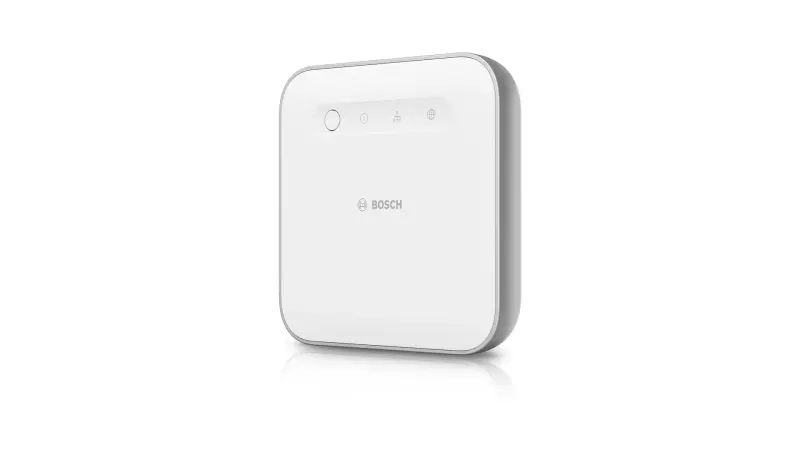
Questions about the Smart Home Controller II? We are happy to help you!
On this page you will find all information about the Smart Home Controller II.
Smart Home controller II - Installation
Smart Home controller II - Installation
You can transfer most of the data to the new Bosch Smart Home controller II.
You can find this data transfer under "More" -> "System" -> "Transfer system data"
You will be guided through the process via detailed step-by-step instructions.
The paired Bosch Smart Home products and automations / scenarios will be migrated to the new Smart Home controller II.
### Problem: The Bosch Smart Home App for the iOS operating system cannot find the Smart Home Controller on the local network
If the Bosch Smart Home App on your iPhone or iPad cannot find the Smart Home Controller, please proceed as follows:
- Leave the screen open in the Bosch Smart Home App that says the Bosch Smart Home Controller cannot be found. Then please press the function button on the front of the Controller until the LAN and Cloud LEDs flash. The Bosch Smart Home App should now jump to the next screen, prompting you to enter the system password.
- Alternatively, you can manually enter the IP address of your Bosch Smart Home Controller.
If this does not lead to the desired result, this is usually due to missing permissions for the Bosch Smart Home App as well as privacy settings on the iPhone/iPad being used.
First, make sure that your mobile device and the Smart Home Controller are on the same network. Additionally, disable mobile data.
We recommend that you then check the following settings and adjust them if necessary if the Smart Home App for iOS displays an error during the initial setup of the Controller:
#### Allow access to devices on the local network
When installing the Smart Home App, the app requests access to the local network. You must agree to this permission. You can adjust the permission later. To do this, proceed as follows:
- Open the Settings on the iPhone/iPad
- Navigate to "Privacy & Security" and "Local Network"
- Select the Bosch Smart Home App from the list of available apps
- Enable access to the local network
For more information on privacy settings, please visit Apple's support page at: If an app wants to connect to devices on your local network - Apple Support (US)
Open the Bosch Smart Home App again and start searching for the Bosch Smart Home Controller.
If the Controller is repeatedly not found, make adjustments to the following privacy settings:
#### Adjusting the "Private Wi-Fi Address" function on your iOS device
Open the Settings on the iOS device being used and navigate to "Wi-Fi".
Click on the info icon next to the connected network.
Change the "Private Wi-Fi Address" for the network your iOS device is currently connecting to to "Static" or "Off".
For more information on this privacy setting, please visit Apple's support page at: Use private Wi-Fi addresses on Apple devices - Apple Support (US)
#### Disabling the "Secure Internet Browsing with iCloud Private Relay" Feature
If you have subscribed to the Apple service "iCloud+", navigate to the following setting:
Open the Settings on your iOS device and tap on your Apple ID.
Navigate to "iCloud" and "Private Relay"
Disable the "Private Relay" feature
For more information about this privacy setting, please visit Apple's support page at: Secure Internet Browsing with iCloud Private Relay on iPhone - Apple Support (EN)
### Connecting the Bosch Smart Home controller II to the network
The Bosch Smart Home controller II is connected to your router via a LAN cable.
A direct connection via WLAN is not possible. Here's how to set up the connection step by step:
#### Setup steps
1. **Connect LAN cable**: Connect the LAN cable to the Bosch Smart Home controller II and your router.
2. **Check cable**: Make sure the LAN cable is correctly inserted and clicks into place.
3. **Check router settings**: The router must be able to assign anIPv4 address to the Smart Home controller II.IPv6 addresses are not supported by the controller.
4. **Internet connection**: For initial setup, the Bosch Smart Home controller II requires an active internet connection to download important software updates.
If you experience any problems during setup, our
is happy to help.Smart Home controller II - Operation
Smart Home controller II - Operation
No results found
Smart Home controller II - Transfer system data
Smart Home controller II - Transfer system data
Duplicate device list in Apple HomeKit
If you notice that your devices are listed twice in Apple HomeKit, this is likely because the devices that were connected via the old controller are still being displayed. These devices are typically marked as "unreachable" and grayed out. Once you remove the old Smart Home Controller from Apple HomeKit, the duplicate device entries should disappear. If you have any further questions or concerns, we are happy to assist you!
Restoring the connection to the second generation camera
After a data transfer, it may happen that the second generation cameras are no longer connected to the system. Here are the steps you should follow to restore the connection:
1. After the data transfer, check whether your camera still works with the new Smart Home controller II.
2. If the camera does not work, open the device management under "More".
3. Delete the cameras that do not work after the data transfer.
4. Then add the cameras again.
With these steps, the connection of your second generation camera should be restored. If you have any further questions, we are happy to help!
Data transfer and Protect+ with the Bosch Smart Home Controller
If you have insured your Bosch Smart Home Controller with Protect+ and are performing a data transfer, there are some important points to consider:
After the data transfer, you must adjust your Protect+ contract. Here are the steps you need to follow:
1. Open the Smart Home app on your smartphone.
2. Go to "More" and select "Protect+".
3. Click on "Adjust contract".
This adjustment ensures that your Protect+ contract remains valid and your Smart Home Controller stays properly insured. If you have any further questions or need assistance, we are happy to help
Restoring the connection to Apple HomeKit after data transfer
After a data transfer, it may be necessary to reconfigure the connection to Apple HomeKit. Here are the steps you should follow:
Before the data transfer
1. Document all room assignments, automations, and scenes you have created in Apple HomeKit. These will need to be recreated after the data transfer.
During the data transfer
1. Access to Apple HomeKit will be disabled in the Bosch Smart Home App.
2. The devices in Apple HomeKit will not be automatically deleted. You must manually remove them in the Apple Home App:
- Open the Apple Home App.
- Navigate to "Home Settings".
- Under "Hubs & Bridges" you will find the Smart Home Controller under "Bridges".
- Remove the Smart Home Controller by selecting "Remove Bridge from Home". Warning: All connected devices will be removed from the Apple Home App, including automations and scenes!
After the data transfer
1. To reactivate Apple HomeKit on the Smart Home Controller, go to "Partners" in the Bosch Smart Home App.
2. Activate Apple HomeKit and follow the steps described in the process.
With these steps, the connection to Apple HomeKit should be restored. If you have any further questions, we are happy to help!
### Prerequisites for data transfer
Before you begin the data transfer, please ensure that the following prerequisites are met:
#### Hardware requirements
- You own a Bosch Smart Home controller II.
- Your router has an additional free network port for the new controller II.
- You have a free power outlet.
- The Smart Home controller II has not been used before or has been reset to factory settings.
- Your current Smart Home controller is running the latest software version. Check the software version here: [Bosch Smart Home Release Notes](https://www.bosch-smarthome.com/xc/en/release-notes/)
#### Device requirements
- To use certain first-generation devices after transferring the system data, you must connect a radio stick (868 MHz) to your Smart Home controller II. The data transfer itself works even without the radio stick.
- The following first-generation devices require a radio stick (868 MHz):
- Room thermostat
- Room thermostat underfloor heating
- Radiator thermostat
- Smart plug
- Smoke detector
- Universal switch
- Universal switch Flex
- Light control
- Shutter control
- Door/window contact
- All smart devices (radiator thermostats, smart plugs, shutter controls, etc.) are online.
#### Network requirements
- The smartphone or tablet you use to start the data transfer is connected to the current Smart Home controller.
- Both Smart Home controllers and your smartphone or tablet are on the same network.
- Disable VPN service on mobile device: For data migration, the Smart Home app must be able to find the controller on the same network. Temporarily turn off the VPN service.
#### Security requirements
- You know the system password.
If all these prerequisites are met, you can begin the data transfer. If you have any further questions or concerns, please feel free to contact our
Instructions for data transfer for the Bosch Energy Manager
When transferring data for the Bosch Energy Manager, there are several points you should consider. Here are the most important steps:
Restoring the connection between Energy Manager App and Smart Home Controller
After data migration, the connection between the Energy Manager App and the Smart Home Controller may be interrupted. To restore it:
1. Delete the Energy Manager App from your devices.
2. Download the app again from the Apple Store or Google Play Store.
3. Alternatively, you can reset the storage of the Energy Manager app.
4. When restarting the app, you will be prompted to connect a Smart Home Controller.
Don't worry, your historical data and the connections to the paired devices will be preserved and transferred.
Restoring the connection to specific devices
For technical reasons, some devices will be displayed as "offline" after migration and must be reconnected. Here are the steps for the affected devices:
Heat pumps with K30 RF or MX300 WLAN Gateway
1. Select the "Components" entry in the menu.
2. Press "..." on the "Heat pump" entry and select "delete".
3. The app will return to the commissioning workflow and you can reconnect the heat pump.
Bosch Power Meter
1. Put the Bosch Power Meter into pairing mode.
2. Press the reset button on the Bosch Power Meter with a pointed object once long (between 0.5 - 2 s) and then within 1 s once briefly (maximum 0.5 s)
With these steps, the data transfer for your Bosch Energy Manager should proceed smoothly. If you have any further questions, we are happy to assist you!
## Identifying and Removing the Old Smart Home Controller
### How to identify your old controller:
1. **Compare the MAC address**: Look at the back of your controller. There you will find the MAC address.
2. **Check the listing**: Compare the last digits of the MAC address with the controller listing.
### How to remove the old controller:
1. **Identify the old controller**: Use the steps mentioned above.
2. **Remove the old controller**: Once you have identified the old controller, you can safely remove it.
If you have any further questions, we are happy to help you!
Solution for duplicate entries in the mobile device manager
If you notice that previously connected mobile devices appear twice in the mobile device manager, there are two possible solutions:
1. Updating the IP address
In some cases, you can resolve the issue by simply entering the new IP address of the Smart Home Controller on these devices. This will reconnect the device and your favorites will be preserved.
2. Reinstalling the Bosch Smart Home App
If updating the IP address does not work and no connection to the new Smart Home Controller can be established, you will need to delete the Bosch Smart Home App from these devices and download it again from the Play Store. Before doing this, you should delete the "old" mobile devices from the mobile device manager.
By following these steps, you should be able to resolve the issue with duplicate entries in the mobile device manager. If you have any further questions or problems, we are happy to assist you!
Transfer of system data: What you should consider
The transfer of system data from your Smart Home controller to the Smart Home controller II is an important process. Here are some points you should consider:
Before data transfer
An update of the Smart Home controller II will be performed. The duration of the update depends on your internet speed and takes an average of 5-10 minutes. While the update is being performed, you can leave the app running in the background.
During data transfer
The data transfer takes an average of 5-10 minutes. You need to take action by following the steps in the app and on the Smart Home controller II. The data is transferred via the local network. You can cancel the data transfer up to a certain point by tapping the "X" at the top left of the screen.
Please note that the connection between the Smart Home controller and your smart devices will be temporarily interrupted during data transfer. All devices (e.g. plug-in switches, room thermostats) and services (e.g. alarm system, presence simulation) will not function during data transfer.
After data transfer
You have the option to restore the connection to partners (Amazon Alexa, Google Assistant, etc.).
If problems occur during data transfer, you can use the old Smart Home controller to control your system after you have canceled the data transfer.
If you have any further questions or concerns, we are happy to help!
Restoring the connection to MBUX Mercedes after data transfer
After a data transfer, it may be necessary to reconfigure the connection to MBUX Mercedes. Here are the steps you should follow:
During the data transfer
1. The Bosch Smart Home Cloud will be deactivated in the Bosch Smart Home App.
2. Switch to the Mercedes Me App and deactivate the Bosch Account under "MBUX Voice Assistant".
After the data transfer
1. To restore the connection to MBUX Mercedes, open the "Bosch Smart Home Cloud" under "Partners" in the Bosch Smart Home App.
2. Subsequently, activate the Bosch Account in the Mercedes Me App under "MBUX Voice Assistant".
With these steps, the connection to MBUX Mercedes should be restored. If you have any further questions, we are happy to assist you!
Restoring the connection to Amazon Alexa after data transfer
After a data transfer, it may be necessary to reconfigure the connection to Amazon Alexa. Here are the steps you should follow:
Before the data transfer
1. Document all room assignments and scenarios you have created in Amazon Alexa. These will need to be recreated after the data transfer.
During the data transfer
1. The Bosch Smart Home Cloud will be deactivated in the Bosch Smart Home App.
2. The devices in Amazon Alexa will be deleted. However, you must manually delete the skill itself:
- Open the Amazon Alexa App.
- Select "more" in the tab bar.
- Select "Skills & Games".
- Switch to "Your Skills".
- Select the "Bosch Smart Home Skill" and disable it.
After the data transfer
1. To restore the connection to Amazon Alexa, please switch to the Bosch Smart Home App and activate the "Bosch Smart Home Cloud" under "Partners".
2. Reactivate the Amazon Alexa Skill via the "Amazon Alexa" menu item.
With these steps, the connection to Amazon Alexa should be restored. If you have any further questions, we are happy to help!
Inserting the radio stick after data transfer
Yes, you can also insert the radio stick after a data transfer. If you are using devices that operate on the 868 MHz radio frequency but do not have a corresponding radio stick, you can still migrate. The data from these devices will be transferred.
Please note, however, that you will only be able to operate the affected devices via the Smart Home app once you have connected a radio stick. Therefore, we recommend that you purchase and connect a radio stick before performing the migration to ensure that you can control all your devices without any problems.
If you have any further questions or need assistance, we are happy to help.
### Migration without Radio stick (868 MHz) with the Bosch Smart Home Controller II
#### Important Information
- **Devices with 868 MHz**: If your devices operate on the 868 MHz radio frequency, you need a corresponding radio stick to control them via the Smart Home app.
- **Migration without radio stick**: Without the radio stick, migration is not recommended, as you will not be able to operate the affected devices.
#### What happens during a migration without a radio stick?
- **Limited control**: You will only be able to control the devices via the Smart Home app again once you have connected a radio stick.
#### Our Recommendation
- **Purchase a radio stick**: Buy a radio stick before migration to ensure that you can control all your devices without any problems.
#### Support
- **Questions and Help**: If you have any further questions or need assistance, we are happy to help.
Data migration: What will be transferred and what needs to be set up again?
When migrating from your old Smart Home Controller to the Smart Home controller II, most of your data and settings will be transferred. However, there are some exceptions you should be aware of.
What will be transferred?
1. Smart Home Controller settings (e.g. rooms and remote access)
2. Paired Bosch Smart Home devices and their settings
3. Integration of Bosch Smart Home cameras 1st Gen
4. Philips Hue devices and their settings
5. Ledvance devices and their settings
6. Automations and scenarios
7. Service configurations
8. Integration of Home Connect home appliances
9. Integration of Yale Smart Lock
10. Created favorites on the smartphone you are using for migration
Please note that Bosch Power Meter and heat pump must be reconnected.
What will not be transferred?
For technical reasons, the following data will not be transferred and must be set up again:
1. Connections between other smartphones or tablets and the Smart Home Controller. These devices must be reconnected.
2. Created favorites on these smartphones or tablets
3. Created widgets
4. Integration of Bosch Smart Home cameras 2nd Gen
5. Connections between Bosch/Buderus Energy Manager apps and the Smart Home Controller
6. Connections to partners via the Smart Home Cloud (Amazon Alexa, Google Assistant, MBUX Mercedes). For these partners, routines, scenarios and rooms must be created again.
7. Connection to Apple HomeKit. Here, created routines and room assignments must be set up again.
If you have insured your first generation Smart Home Controller with Protect+, you must change your contract via "More
– Protect+" and click on "Adjust contract".
If you have any further questions or concerns, we are happy to help!
Restoring the connection to Google Home after data transfer
After a data transfer, it may be necessary to reconfigure the connection to Google Home. Here are the steps you should follow:
Before the data transfer
1. Document all room assignments, routines, and scenarios you have created in Google Home. These will need to be recreated after the data transfer.
During the data transfer
1. The Bosch Smart Home Cloud will be deactivated in the Bosch Smart Home App.
2. The devices in Google Home will not be automatically deleted. You must remove them manually in the Google Home app:
- Open the Google Home app.
- Select "Settings".
- Click on "Add devices".
- Select "Works with Google".
- Under "Linked services", select the "Bosch Smart Home Action".
- Select "unlink account".
- The devices will be removed from the Google Home app and the routines being used.
After the data transfer
1. To restore the connection to Google Home, open the "Bosch Smart Home Cloud" under "Partners" in the Bosch Smart Home App.
2. Reconnect the Bosch Smart Home Action with Google Home:
- Open the Google Home app.
- Select "Settings".
- Click on "Add devices".
- Select the "Bosch Smart Home Action" and connect the applications.
With these steps, the connection to Google Home should be restored. If you have any further questions, we are happy to assist you!
# Troubleshooting: Devices are displayed but cannot be controlled
If your devices are displayed after data transfer but cannot be controlled, this could be due to two possible causes:
## Possible causes
### 1. Restart of the Smart Home controller II during data transfer
After an update or restart of the Smart Home controller II, it may happen that the devices temporarily do not report a status to the controller. However, the devices remain fully functional. To display the correct status in the app immediately, operate the device manually directly on the device itself.
### 2. Old controller is still connected to the router
If your old Smart Home controller is still connected to your home network, the new Smart Home controller II cannot communicate with the end devices. Make sure you have disconnected your old controller from the router.
## Solution steps
- Operate the device manually to update the status in the app.
- Disconnect the old Smart Home controller from the router.
By following these steps, you should be able to control your devices normally again. If you have any further questions or problems, we are happy to help!
Duplicate device list in Google Home
If you notice that your devices are listed twice in Google Home, this is likely because the devices that were connected via the old controller are still being displayed. These devices are typically marked as "unreachable". To remove the duplicate device entries, you need to delete the connection between Bosch Smart Home and the Google Home app. Here are the steps you should follow:
1. Open the Google Home app.
2. Select "Settings".
3. Click on "Add device".
4. Select "Works with Google".
5. Under "Linked services", select the "Bosch Smart Home Action".
6. Select "unlink account".
After you have completed these steps, the duplicate device entries should disappear. If you have any further questions or concerns, we are happy to assist you!
Data migration: What will be transferred and what needs to be set up again?
When migrating from your old Smart Home Controller to the Smart Home controller II, most of your data and settings will be transferred. However, there are some exceptions you should be aware of.
What will be transferred?
1. Smart Home Controller settings (e.g. rooms and remote access)
2. Paired Bosch Smart Home devices and their settings
3. Integration of Bosch Smart Home cameras 1st Gen
4. Philips Hue devices and their settings
5. Ledvance devices and their settings
6. Automations and scenarios
7. Service configurations
8. Integration of Home Connect home appliances
9. Integration of Yale Smart Lock
10. Favorites created on the smartphone you are using for migration
Please note that Bosch Power Meter and heat pump must be reconnected.
What will not be transferred?
For technical reasons, the following data will not be transferred and must be set up again:
1. Connections between other smartphones or tablets and the Smart Home Controller. These devices must be reconnected.
2. Favorites created on these smartphones or tablets
3. Created widgets
4. Integration of Bosch Smart Home cameras 2nd Gen
5. Connections between Bosch/Buderus Energy Manager apps and the Smart Home Controller
6. Connections to partners via the Smart Home Cloud (Amazon Alexa, Google Assistant, MBUX Mercedes). For these partners, routines, scenarios and rooms must be created again.
7. Connection to Apple HomeKit. Here, created routines and room assignments must be set up again.
If you have insured your first generation Smart Home Controller with Protect+, you must change your contract via "More
– Protect+" and click on "Adjust contract".
If you have any further questions or concerns, we are happy to help!
Smart Home controller II - Back up system data
Smart Home controller II - Back up system data
No, these are two different passwords.
If you chose to do so when creating your backup, the backup password corresponds to the system password at the time the backup was created.
The Bosch Smart Home team has no way to help you recover a lost backup password, nor any way to reset the system password.
The following must be observed when backing up and later restoring the system data:
- The data backup takes approximately 1 - 5 minutes.
- The Smart Home Controller is not available during the process.
- You can cancel the data backup by tapping the "X" icon at the top left of the screen.
- If an error occurs during the data backup, you will be notified.
- Please note the data backup password in your private password manager. You will need this for a subsequent data restoration. The Bosch Smart Home team has no way to enable you to restore in the event of loss of the system password or the data backup password.
- You can save the backup file on your mobile device or in another storage location.
- As part of backing up the system data for later restoration, it may be possible in individual cases, despite compliance with all specifications and requirements, that problems occur when saving or restoring the data. In these cases, devices may need to be re-learned or connections re-established, despite prior data backup. Therefore, no guarantee can be given that restoration from backed-up system data will work.
Unfortunately, this is not possible.
You can back up the data on your mobile device or in your private cloud.
The following requirements must be met for the data backup to be performed successfully:
- The Smart Home Controller and your smartphone or tablet are on the same home network.
- You know the system password.
- All smart devices you want to back up (radiator thermostats, plug-in switches, shutter controls, etc.) are online.
- For technical reasons, restoration of Zigbee devices is only possible on the Smart Home Controller II.
First-generation devices that support the proprietary 868 MHz radio protocol are not affected by this restriction. They can also be fully restored on the first-generation Smart Home Controller.
No, this is not possible.
We recommend updating the data backup every year, as the ZigBee network key is updated after a period of x. The reason for this behavior is based on the security standards of ZigBee communication. If this were to happen between the time the data backup was created and the data restoration, the controller would not be able to communicate with the ZigBee devices
Yes, this is possible - but do not start the second backup immediately after the first one (15 min)
Smart Home controller II - Restore system data
Smart Home controller II - Restore system data
The following must be considered when restoring system data:
- Data restoration takes approximately 10 minutes.
- The Smart Home Controller is not available during the process.
- If an error occurs during data restoration, you will be notified and the old configuration will be retained.
- You need the backup password that you created when creating the backup. Bosch Smart Home has no way to enable recovery for you if the password is lost.
- At the completion of data restoration, software components of the Smart Home Controller will be restarted. During this restart, the LEDs on the device will not flash.
- After data restoration, the devices will not report any status for up to 24 hours. The configuration will only be assigned to the devices once they have reported back to the Smart Home Controller.
- Devices whose installation type has changed after the data backup will be deleted and must be re-paired.
Please check the configuration or intended use of the devices on-site afterwards and adjust them if necessary.
As part of backing up system data for later restoration, it may be possible in individual cases, despite compliance with all specifications and requirements, that problems occur during the saving or restoration of data. In these cases, devices may need to be re-paired or connections re-established despite prior data backup. Therefore, no guarantee can be given that restoration from backed-up system data will work.
If you perform a data backup again within the first 24 hours after data restoration, you prevent the device settings from the backup from being applied.
The controller on which you want to restore a backup must be at least at the software version under which you created the backup. Please update the software of the Smart Home Controller and restart the data recovery
When restoring to the same controller, it may be possible to restore the data, and it may "only" be necessary to reset the connection due to an expired token
For technical reasons, a data backup of the connection to MBUX Mercedes is not possible.
During data restoration, the Bosch Smart Home Cloud will be deactivated in the Bosch Smart Home App.
Switch to the Mercedes Me App and deactivate the Bosch Account under MBUX Voice Assistant.
If you want to restore the connection to MBUX Mercedes after data restoration, open the "Bosch Smart Home Cloud" under "Partners" in the Bosch Smart Home App and then activate the Bosch Account in the Mercedes Me App under "MBUX Voice Assistant".
If you have insured your Smart Home Controller with Protect+, you must modify your contract after a data recovery on a new controller under "More – Protect+" and click on "Adjust contract".
When backing up system data for later recovery, it may be possible in individual cases, despite compliance with all specifications and requirements, that difficulties occur during storage or restoration of data on the controller. In these cases, it may be necessary to re-learn/pair despite prior data backup. Therefore, no guarantee can be given that restoration from backed-up system data will work.
The following prerequisites must be met for data recovery to be carried out successfully:
- You are in the home network.
- You know the data backup password.
- All smart devices that you want to restore (radiator thermostats, plug adapters, shutter controls, etc.) are online.
- If you want to switch from a functional first-generation Smart Home controller to a Smart Home controller II, we recommend doing this via data transfer under "More" > "System" > "Data transfer".
More data can be transferred there.
- If you are switching from a defective first-generation Smart Home controller to a Smart Home controller II and have first-generation devices, you will need the Bosch Smart Home radio stick (868 MHz) to operate them.
- If you restore the data without inserting the radio stick, you will only be able to operate the affected devices via the app once you connect a radio stick:
- Room thermostat (first generation)
- Room thermostat underfloor heating (first generation)
- Radiator thermostat (first generation
- Plug adapter (first generation)
- Smoke detector (first generation)
- Universal switch (first generation)
- Universal switch Flex (first generation)
- Light control (first generation)
- Shutter control (first generation)
- Door/window contact (first generation)
When restoring to the same controller, it may be possible to restore the data, and possibly "only" the connection needs to be reset due to an expired token
For technical reasons, a data backup is not possible. Created routines and room assignments must be recreated.
We recommend documenting the room assignments, routines, and scenarios you have created in Google Home before data recovery so that you can recreate them afterwards.
During data recovery, the Bosch Smart Home Cloud is deactivated in the Bosch Smart Home App. However, the devices in Google Home itself are not deleted - you must take action in the Google Home App.
- Open the Google Home App
- Select "Settings".
- Click on "Add device"
- Select "Works with Google"
- Select the "Bosch Smart Home action" under "Linked services"
- Select "unlink account"
The devices will be removed from the Google Home App and the routines being used.
If you want to reconnect to Google Home after data recovery, open the "Bosch Smart Home Cloud" under "Partners" in the Bosch Smart Home App.
Reconnect the Bosch Smart Home Action with Google Home.
- To do this, open the Google Home App
- Select "Settings".
- Click on "Add device"
- Select the "Bosch Smart Home Action" and connect the applications.
You can find the entries under "More" -> "System" in the section: "Data Transfer" under the menu items "Data Backup" and "Data Recovery".
The devices that were connected via the old controller are marked as "not reachable" in gray. As soon as you delete the old Smart Home Controller from Apple HomeKit, the devices will disappear.
You can identify which is your new and which is your old controller by comparing the last digits of the Smart Home controller listing with the MAC address of the Smart Home controller on the back of the device. Remove the old controller.
When restoring to the same controller, it may be possible to restore the data, and possibly "only" the connection needs to be re-established due to an expired token
The connection between the Energy Manager app and the Smart Home Controller is no longer available after data restoration. To restore it, please delete the Energy Manager app from these devices and download it again from the Apple or Play Store. Alternatively, you can also reset the storage of the Energy Manager app. When you restart it, you will be prompted to connect a Smart Home Controller.
Your historical data will be preserved, all data and connections to the paired devices will be restored. For technical reasons, however, the following two devices will be displayed as "offline" after the migration and must be reconnected:
- Heat pumps with K30 RF or MX300 WLAN Gateway
To reconnect the device, select the "Components" entry in the menu, then press "..." at the "Heat pump" entry and select "delete". The app will then return to the commissioning workflow and you can reconnect the heat pump
- Bosch Power Meter
To reactivate the connection to this device, please put the Bosch Power Meter into pairing mode. To do this, press the reset button on the Bosch Power Meter with a pointed object once long (between 0.5 - 2 s) and then once briefly (maximum 0.5 s) within 1 s.
The reason is the different timing of data creation - with data transfer this occurs within a short time window - the data backup can be several months old before it is restored.
Connections to partners or devices that have a so-called "token" are excluded from data restoration, as these have only limited validity.
No, the controller on which you restore the backup must already be set up.
When restoring on the same controller, it is possible that a data recovery is feasible, and possibly "only" the connection needs to be reset due to an expired token
For technical reasons, the Bosch Smart Home cameras cannot be backed up - unfortunately, the devices disappear from automations and scenarios.
You must perform the following steps to reconnect your cameras to your system.
- Open the device management under "More" and delete the cameras that do not work after the data recovery
- Renew the connection to the Bosch Smart Cameras under "More" - "Partners" - "Bosch Smart Cameras"
- Then add the cameras again
When restoring on the same controller, it is possible that data recovery may be possible, and perhaps "only" the connection needs to be re-established due to an expired token
For technical reasons, the Yale locks cannot be backed up - unfortunately the devices disappear from automations and scenes.
You must perform the following steps to reconnect them to your system.
- Open the device management under "More" and delete the devices that do not work after the data recovery
- Renew the connection to Yale under "More" - "Partners" - "Smart Door Locks"
- Then add the devices again
If your devices are displayed in the favorites after data restoration but cannot be controlled, this can mainly be due to 2 things:
1.) The Smart Home controller II had to be restarted during data restoration.
After an update or restart of the Smart Home controller, it is temporarily normal for the devices not to report their status to the controller. The devices remain fully functional. To immediately see the correct status in the app, operate the device manually on the device itself.
2.) If you have switched to another controller: You have not yet removed your old controller from the router. As long as your old Smart Home controller is connected to your home network, the new Smart Home controller cannot communicate with the end devices
When restoring to the same controller, it may be possible to restore the data, and possibly "only" the connection needs to be reset due to an expired token
For technical reasons, data recovery is not possible. Created scenes and room assignments must be recreated.
We recommend documenting the room assignments, automations, and scenarios you have created in Apple HomeKit before data recovery, so that you can recreate them afterwards.
During data recovery, access to Apple HomeKit is deactivated in the Bosch Smart Home App. However, the devices in Apple HomeKit itself are not deleted - you must take action in the Apple Home App.
Open the Apple Home App and remove the Smart Home Controller.
To remove the Smart Home Controller, switch to the Apple Home App and navigate to "Home Settings". There you will find the Smart Home Controller under "Hubs & Bridges" in the "Bridges" section.
Please remove the Smart Home Controller by selecting "Remove Bridge from Home" - Warning: All connected devices will be removed from the Apple Home App, including automations and scenes!
To reactivate Apple HomeKit on the Smart Home Controller, go to Partners, activate Apple HomeKit, and follow the steps described in the process.
No - when transferring data from a Smart Home controller to a Smart Home controller II, more data can be transferred than with a data backup (example: Home Connect devices).
Therefore, if you have a functioning Smart Home controller and wish to switch to a Smart Home controller II, we recommend choosing the data transfer option.
The reason for this is the different timing of data creation - with data transfer, this occurs within a short time window - the data backup may be several months old before it is restored.
Connections to partners or devices that have a so-called "token" are excluded from data restoration, as these have only limited validity.
Controller 1 - same Controller 1 -> yes
Controller 1 - different Controller 1 -> no ZigBee device recovery
Controller 1 - Controller 2 -> yes - if Controller 1 still works we recommend migration
Controller 2 - same Controller 2 -> yes
Controller 2 - different Controller 2 -> yes
Controller 2 - Controller 1 -> no ZigBee device recovery
This data will be restored:
- A large part of the Smart Home controller settings (e.g. rooms)
- Paired Bosch Smart Home devices and a large part of their settings
- Connection to Philips Hue devices-
- Connection to Ledvance devices
- Automations, scenarios and statesConfigurations of the services
- Measurement data of the Twinguard.
- Data and configuration of the Bosch/Buderus Energy Manager.
For technical reasons, the following data will not be restored when switching to a new controller:
- Connections between other smartphones or tablets and the Smart Home controller.
These mobile devices must then be reconnected.
- Connections between the Smart Home controller and the devices that use the local REST API
- The status of remote access
- The status of the paired devices (e.g. on/off/color/brightness)
- Individual configurations of the devices such as the calibration and position of the shutter control (Gen 1) and the settings of the heating system, boost mode of the thermostats, power source of the outdoor siren
- Favorites
- Created widgets
- Integration of the Bosch Smart Home cameras. The devices must be deleted and the connection must be re-established.
The Energy Manager app must be reconnected to the Bosch Smart Home controller after data recoveryHeat pump and power meter must be re-paired via the Energy Manager app if data recovery is performed on a different Bosch Smart Home controller
- Integration of Home Connect home appliances
- Integration of the Yale Smart Lock
- Connections to partners via the Smart Home Cloud:
-- Amazon Alexa
-- Google Assistant
-- MBUX Mercedes
For these partners, routines, scenarios and rooms must be recreated.
- Connection to Apple HomeKit.
created routines and assignment to rooms must be recreated.
- Connection to Matter - created routines and assignment to rooms must be recreated in the respective Matter apps.
Important
- When switching Smart Home controllers, the restoration of connections to Zigbee devices can only be done to a Smart Home controller II for technical reasons.
- If devices have been deleted or reset to factory settings, they cannot be restored.
Please note:
- Devices whose installation type has changed after the data backup will not be restored.
Installation type:
- Light/shutter control II Installation as light control or as shutter control or blinds or awning;
- Relay Installation type as on/off switch or pulse control)
When restoring to the same controller, it may be possible to restore the data, and possibly "only" the connection needs to be reset due to an expired token
For technical reasons, the Home Connect devices cannot be backed up - unfortunately, the devices disappear from the automations and scenarios.
You must perform the following steps to reconnect them to your system.
- Open the device management under "More" and delete the devices that do not work after the data restoration
- Renew the connection to Home Connect under "More" - "Partners" - "Home Connect"
- Then add the household appliances again
The devices that were connected via the old controller are now marked as "not reachable". To delete the devices, you must delete the connection between Bosch Smart Home and the Google Home app (unlink account).
After data recovery on a new controller, the previously connected mobile devices cannot find the new Smart Home Controller.
Delete the Bosch Smart Home App from these devices and download it again from the play stores and reconnect the devices to the new controller.
When restoring data on the same controller, the mobile devices remain connected to the controller. Favorites are also retained in this case.
When restoring to the same controller, it may be possible to restore the data, and possibly "only" the connection needs to be reset due to an expired token
For technical reasons, a data backup is not possible. Created routines and room assignments must be recreated.
We recommend documenting the room assignments and scenarios you have created in Amazon Alexa before data recovery so that you can recreate them afterwards.
During data recovery, the Bosch Smart Home Cloud is deactivated in the Bosch Smart Home App. The devices in Amazon Alexa itself are deleted in this step. However, you must delete the skill itself manually.
- Open the Amazon Alexa App
- Select "more" in the tab bar.
- Select "Skills & Games"
- Switch to "Your Skills"
- Select the "Bosch Smart Home Skill" and deactivate it.
To restore the connection to Amazon Alexa after data recovery, please switch to the Bosch Smart Home App and activate the "Bosch Smart Home Cloud" under "Partners". Activate the Amazon Alexa Skill again via the "Amazon Alexa" menu item.
Get in touch with us.
A personal and professional service is important to us. If you have any questions or need professional personal support, please do not hesitate to contact us.